How to Fix a Slow Computer
If you are searching for how to fix a slow computer, you are likely frustrated with programs taking forever to open, your browser freezing, or your entire system feeling unresponsive.
A computer running slow can affect productivity, gaming, online meetings, and even simple tasks like checking email.
In this guide, you will learn exactly how to fix a computer running slow, whether you are using a desktop or wondering how to fix a slow laptop computer. We will break down the most common causes, explain the three main hardware components responsible for performance issues, and walk through practical, step-by-step solutions that work for both how to fix a slow computer Windows 10 and how to fix a slow computer Windows 11.
By the end of this article, you will know what is causing your PC to lag and how to bring it back to life.
Why Is My PC Lagging?
Before learning how to fix a slow computer, we need to understand why it happens.
Most slowdowns are not random. They usually come from one of three main areas:
- CPU overload
- Insufficient RAM
- Slow or nearly full storage drive
Sometimes the issue is software-related, like too many startup programs, background applications, or outdated Windows updates. Other times, the problem is hardware limitations, especially if your device is several years old.
If your computer freezes when opening multiple browser tabs, the problem may be RAM. If everything loads slowly including file explorer, the storage drive could be the bottleneck. If performance drops during multitasking, the CPU might be overloaded.
Identifying the cause is the first step in learning how to fix a computer running slow properly instead of guessing.
Restart Your PC
It may sound simple, but restarting your computer is more powerful than most users realize. A restart clears temporary memory, stops background processes that may be stuck, and resets system resources. If your computer has been running for days or weeks without a reboot, this alone can restore noticeable performance.
Many people put their laptops to sleep instead of restarting them. Over time, this accumulates memory fragmentation and resource leaks. Restarting regularly is one of the easiest ways to maintain performance.
Check Task Manager for Resource Usage
Task Manager is your best diagnostic tool. Once opened, sort processes by CPU usage and observe whether a specific application is consuming abnormal resources. If a browser tab, update service, or unknown process is using most of the processor, closing or uninstalling it may resolve the issue.
Switch to the Performance tab and observe memory usage. If RAM is consistently above 85 percent during normal activity, your system does not have enough memory for your workload. In this case, upgrading RAM is often the most effective improvement, especially for users researching how to fix a slow laptop computer.
Disk usage should also be monitored. If it frequently spikes to 100 percent, particularly on older hard drives, the storage device may be the bottleneck.

Disable Startup Programs
Many applications automatically launch when Windows starts. These programs consume memory and processor power before you even begin working.
Open Task Manager and navigate to the Startup tab. Review the list carefully. Applications such as messaging clients, media launchers, cloud storage services, and update managers often do not need to run immediately at boot.
Disabling unnecessary startup programs reduces boot time and improves overall responsiveness. This step is especially important when addressing how to fix a slow computer Windows 10 or Windows 11 on older hardware.
Free Up Disk Space
Storage performance decreases when the drive is nearly full. Windows requires free space for temporary files, updates, and virtual memory.
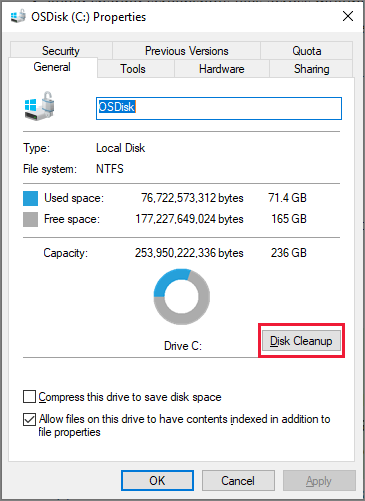
Go to Settings, then System, and open Storage. Remove temporary files, delete unnecessary downloads, and uninstall programs you no longer use. You can also run Disk Cleanup to clear cached update files and system clutter.
If you are using a traditional hard drive, ensure that it is not heavily fragmented. Use the Optimize Drives tool in Windows to reorganize files for better read performance. This process should not be used on SSDs.
Upgrade to an SSD
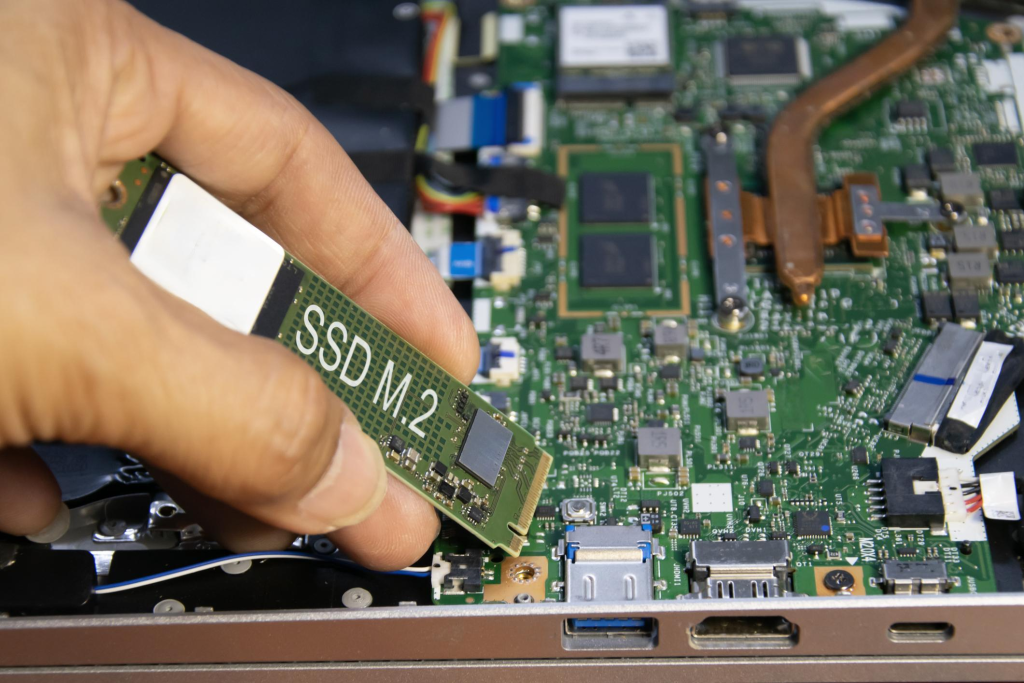
If your computer still uses a mechanical hard drive, upgrading to a solid-state drive is the single most impactful improvement you can make. An SSD dramatically reduces boot times and application load times.
Systems that take two minutes to start on an HDD often boot in under twenty seconds on an SSD. Program responsiveness becomes immediate, and overall system fluidity improves significantly.
For users asking how to fix a computer running slow permanently, switching from HDD to SSD is often the real solution.
Add More RAM
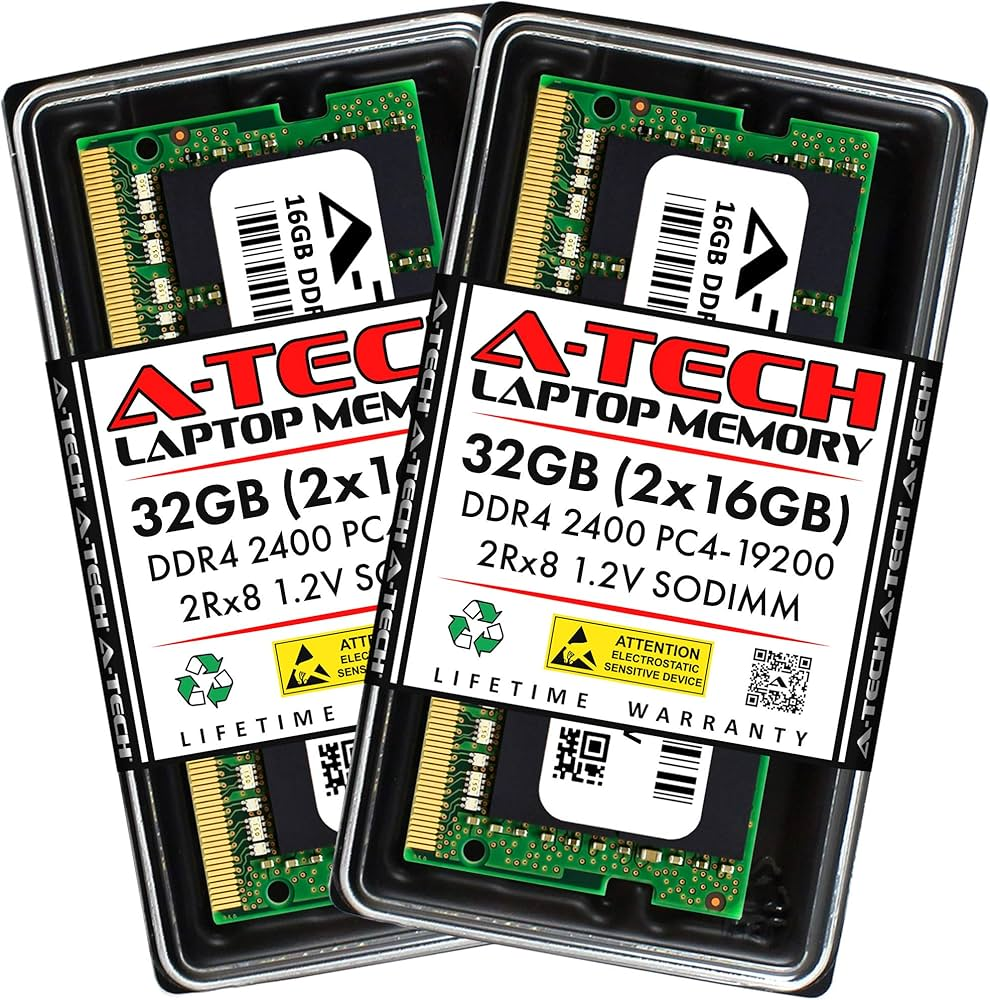
If you frequently multitask or keep many browser tabs open, upgrading RAM provides noticeable improvements. Moving from 4GB to 8GB can transform usability. Moving to 16GB offers smooth multitasking for most users.
Before upgrading, verify your motherboard’s maximum supported memory and type. For laptops, ensure compatibility with your device model.
Adding RAM is one of the most cost-effective ways to fix a slow laptop computer without replacing the entire system.
Check for Malware and Background Services
Malware can silently consume CPU and memory resources. Run a full system scan using Windows Security or a reputable antivirus solution.
Also review background services by typing “Services” in the Windows search bar. Some third-party services may be unnecessary and consume system resources. Disable only what you understand, as disabling critical services can affect system stability.
Update Drivers and Windows
Outdated drivers can cause inefficiencies and performance instability. Open Device Manager and check for updates to graphics, chipset, and network drivers.
Keeping Windows updated ensures performance patches and stability improvements are applied. Sometimes, systems become slow because pending updates are running in the background.
Adjust Visual Effects
Windows includes visual animations and transparency effects that consume minor system resources. On lower-end hardware, disabling these can improve responsiveness.
Search for Advanced System Settings, open Performance Options, and select Adjust for best performance. This reduces animations and makes the interface more responsive, particularly on older systems.
How to Fix a Slow Computer Windows 10 vs Windows 11
The core troubleshooting process is the same for both operating systems. Windows 11 includes improved memory management and better scheduling for modern processors, but it also requires slightly more resources.
If you upgraded older hardware to Windows 11 and noticed performance degradation, the issue is often insufficient RAM or lack of SSD storage rather than the operating system itself.
Whether you are trying to fix a slow computer Windows 10 or Windows 11, the same fundamental principle applies: identify the bottleneck and remove it.
When Hardware Replacement Is Necessary
There are cases where optimization alone is not enough. If your system uses a very old dual-core processor, supports only 4GB of RAM, and lacks SSD compatibility, replacing the device may be more cost-effective than upgrading it.
However, most computers manufactured in the last decade can be significantly improved with proper upgrades.
How to Fix a Slow Computer - Conclusion
Learning how to fix a slow computer requires understanding system resources, not guessing. Most performance problems come from processor overload, insufficient memory, or slow storage.
By restarting regularly, monitoring Task Manager, disabling unnecessary startup programs, freeing disk space, upgrading RAM, and especially installing an SSD, you can transform a sluggish system into a responsive machine.
Whether you are researching how to fix a slow laptop computer, how to fix a computer running slow, how to fix a slow computer Windows 10, or how to fix a slow computer Windows 11, the key is diagnosing correctly and applying the right solution.
Performance is not about luck. It is about identifying the bottleneck and eliminating it.
Si quieres conocer otros artículos parecidos a How to Fix a Slow Computer puedes visitar la categoría Blog.
Leave a Reply